Using Make.com with TE Recruit's Open API
 This feature is only available on the Professional Tier
Make.com (formerly Integromat) is a no-code visual platform used to connect apps, databases, and services to automate complex workflows. By connecting to TE Recruit's Open API, you can build integrations within Make that move information between an external platform and your TE Recruit account.
Note: The ability to create an integration is restricted to only those users that have the proper permission
To Connect to TE Recruit's Open API:
If you do not already have a Make account, you will need to create one prior to following these steps.
-
Visit https://www.make.com, login, and click the Create Scenario button in the top right corner of your screen

-
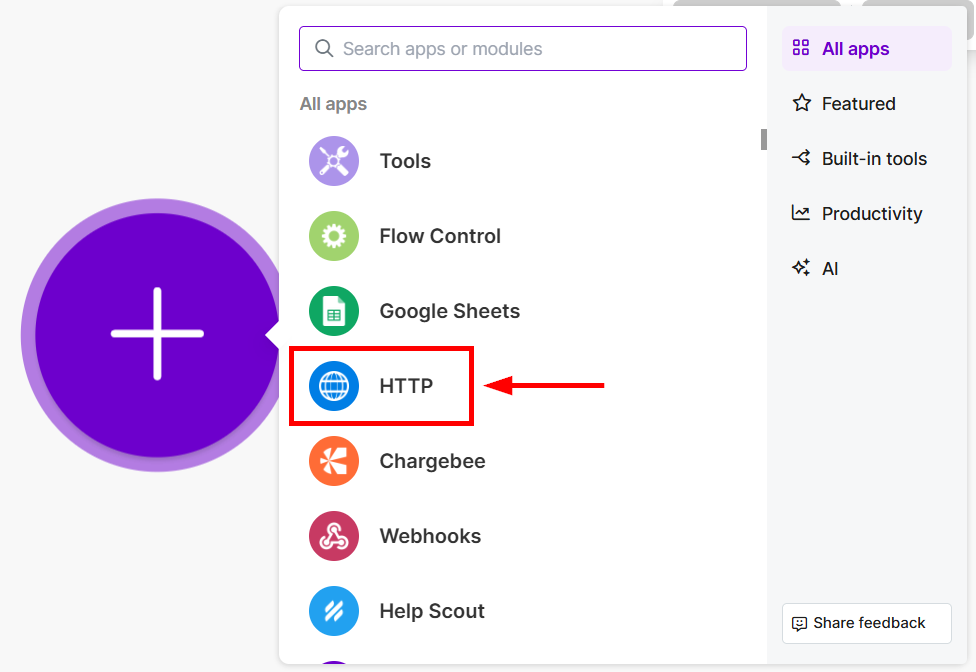
Click the purple plus button, and then choose choose HTTP
- Select Make a request
-
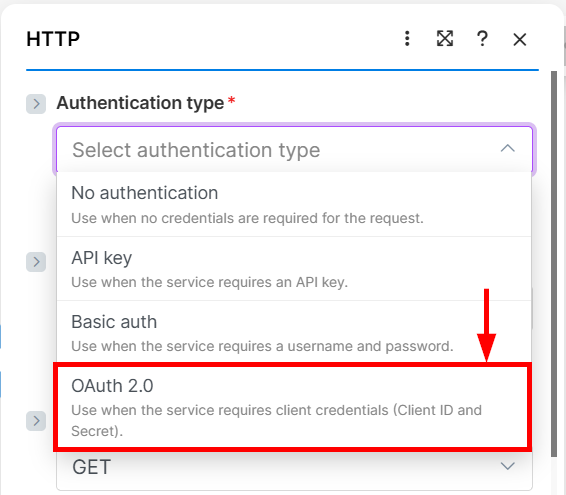
In the Authentication type drop-down menu, choose OAuth 2.0
-
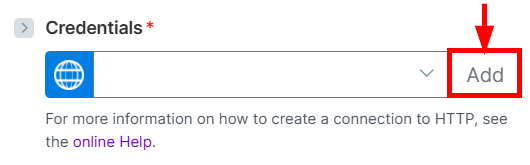
Under Credentials, click the Add button
-
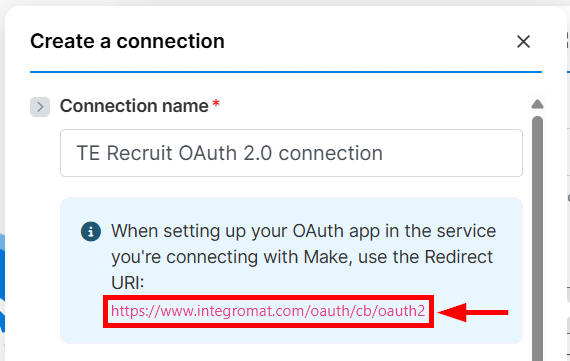
Give your connection a name and copy the Redirect URI
-
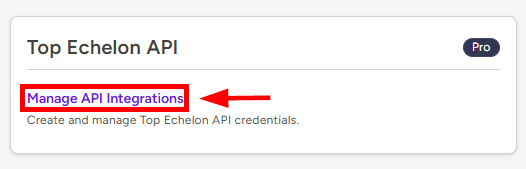
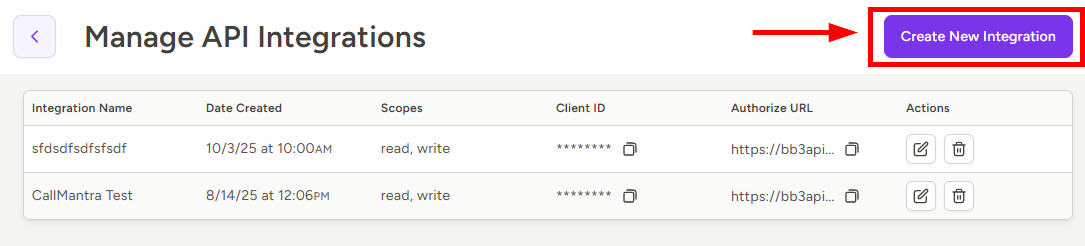
In TE Recruit, navigate to Settings > Top Echelon API > Manage API Integrations, and click on Create New Integration
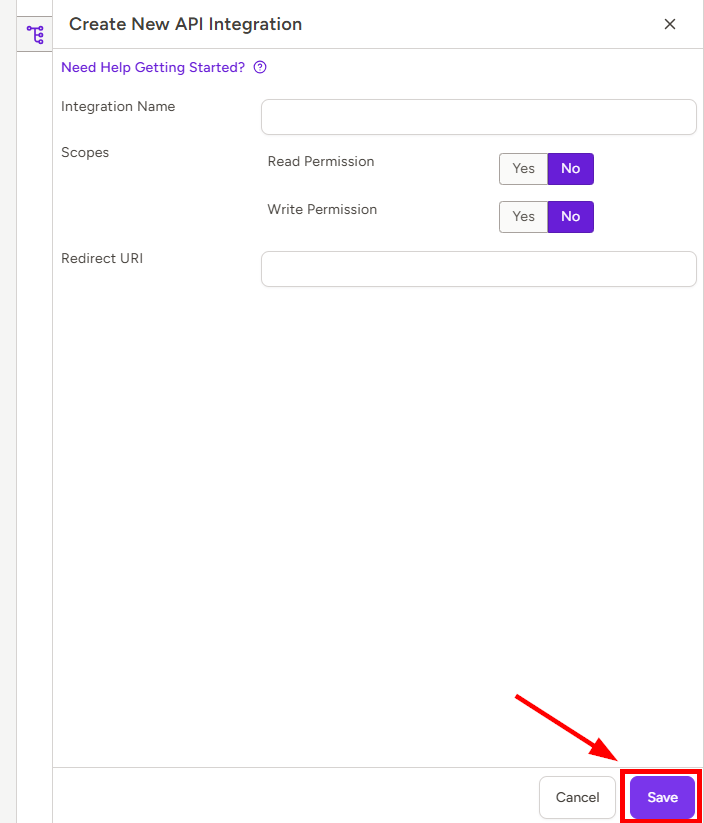
- In the Create New API Integration pane, fill out all the required fields and click Save at the bottom right of your screen
- Integration Name - this will be the name of the Integration that users will see when authenticating and giving permission for the Integration to access their TE Recruit data
- Integration Name can be whatever you like, but "Make.com" would be a good choice in this example
- Scopes - this specifies whether the Integration will be able to Read and/or Write data within TE Recruit
- Select at least one Scope
-
Redirect URI - this is the URL that you copied from Make in step 6
- Integration Name - this will be the name of the Integration that users will see when authenticating and giving permission for the Integration to access their TE Recruit data
- A modal will open providing you with your Client ID, Client Secret, Authorize URL, and Token URL
- IMPORTANT: This modal is the only place you will be able to access the Client Secret for your new Integration, so copy the Client Secret immediately and store it securely
- Client ID, Authorize URL, and Token URL will all be accessible/copyable later, but this is your only opportunity to copy your Client Secret
-
If you fail to copy your Client Secret, or misplace it, you will have to repeat this process to create a new Integration
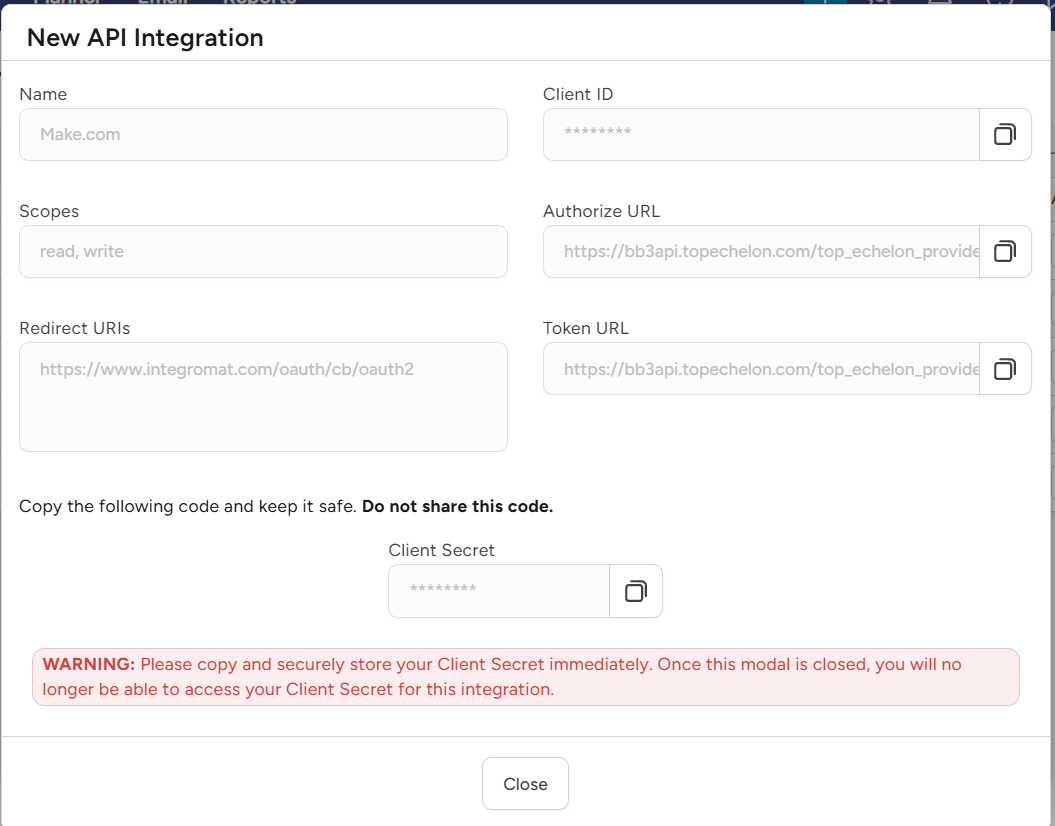
- IMPORTANT: This modal is the only place you will be able to access the Client Secret for your new Integration, so copy the Client Secret immediately and store it securely
- Back in Make, set the Flow type drop-down to Authorization Code,
- Paste in your Authorize URI, Token URI, Client ID, and Client Secret that you obtained in TE Recruit in Step 9, above
-
Click the Save button at the bottom right when complete
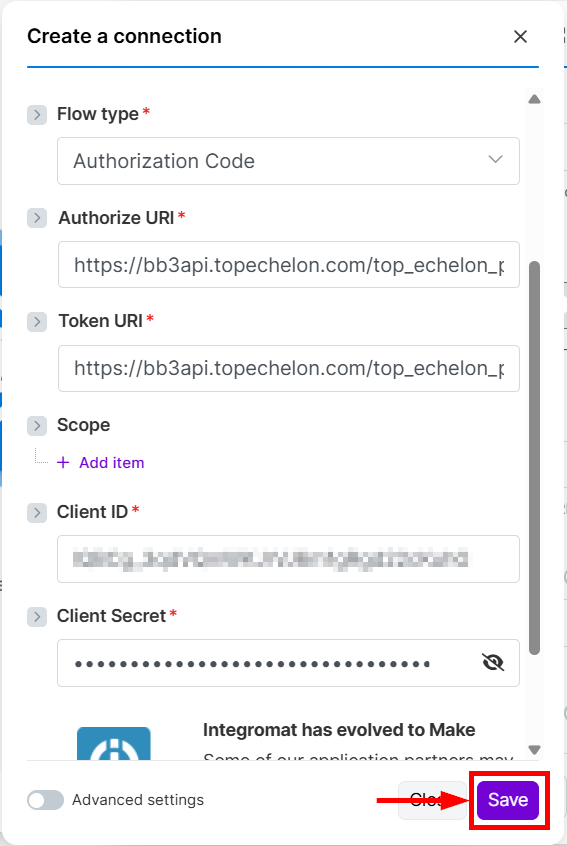
- A window will pop up asking you to allow Make to access your TE Recruit account
- Click the Authorize button
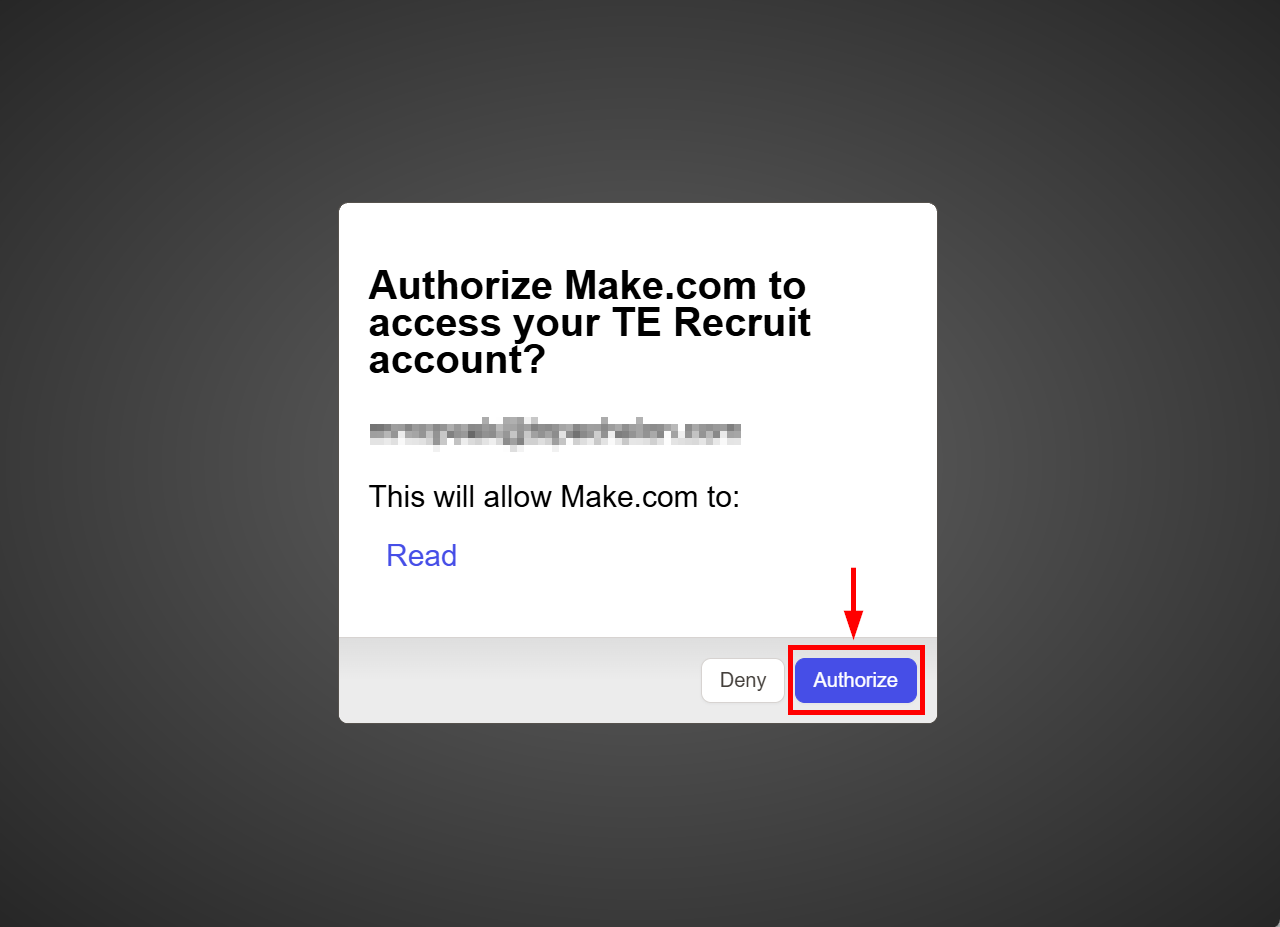
To Make an API Call:
Once you are connected to TE Recruit's Open API, there are several different endpoints you can send requests to. The URLs for those can be found in our swagger doc. Each request follows the same steps in Make.
- Click the purple plus button, and then choose choose HTTP
- If you already have your first module set up, you will use the purple plus button in the bottom toolbar instead.
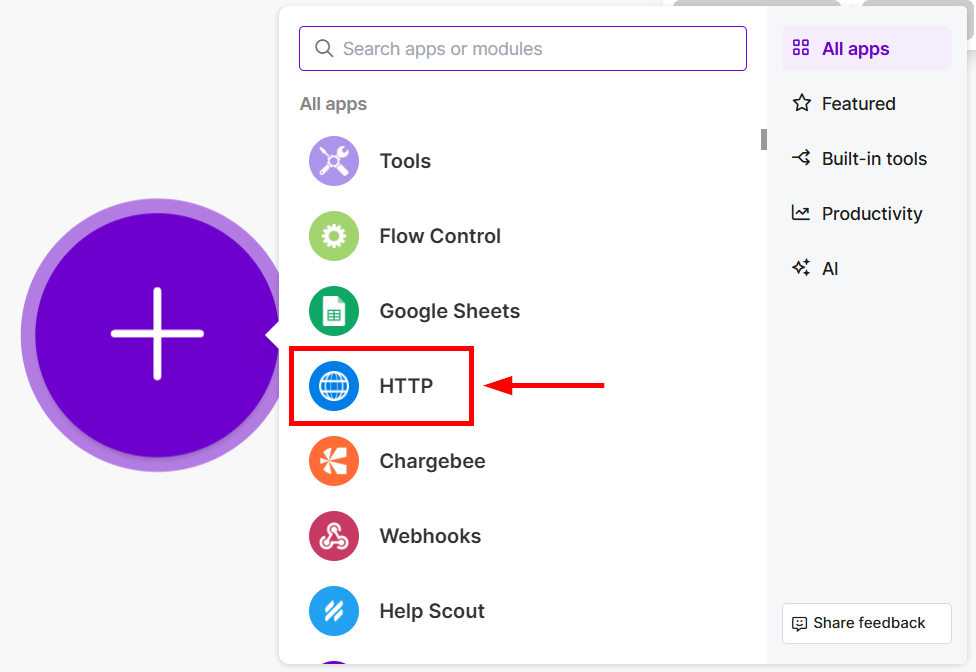
- In the Authentication type drop-down menu, choose OAuth 2.0
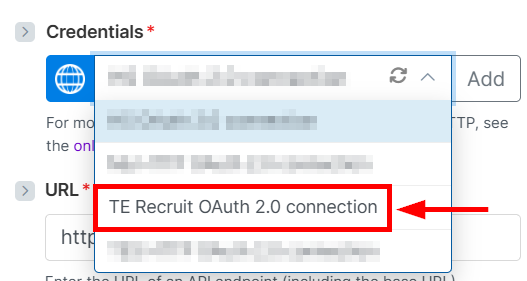
- In the dropdown under Credentials, choose the TE Recruit credentials
- If you haven't connected to TE Recruit's Open API yet, you will need to follow the steps at the top of this page first
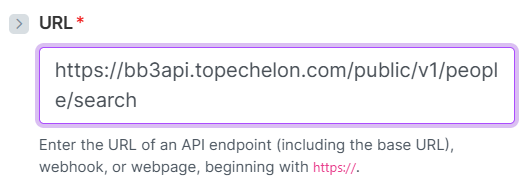
- In the URL field, you will enter the URL for the endpoint you wish to use. Those can be found in our swagger doc.
- All endpoints will start with https://bb3api.topechelon.com/
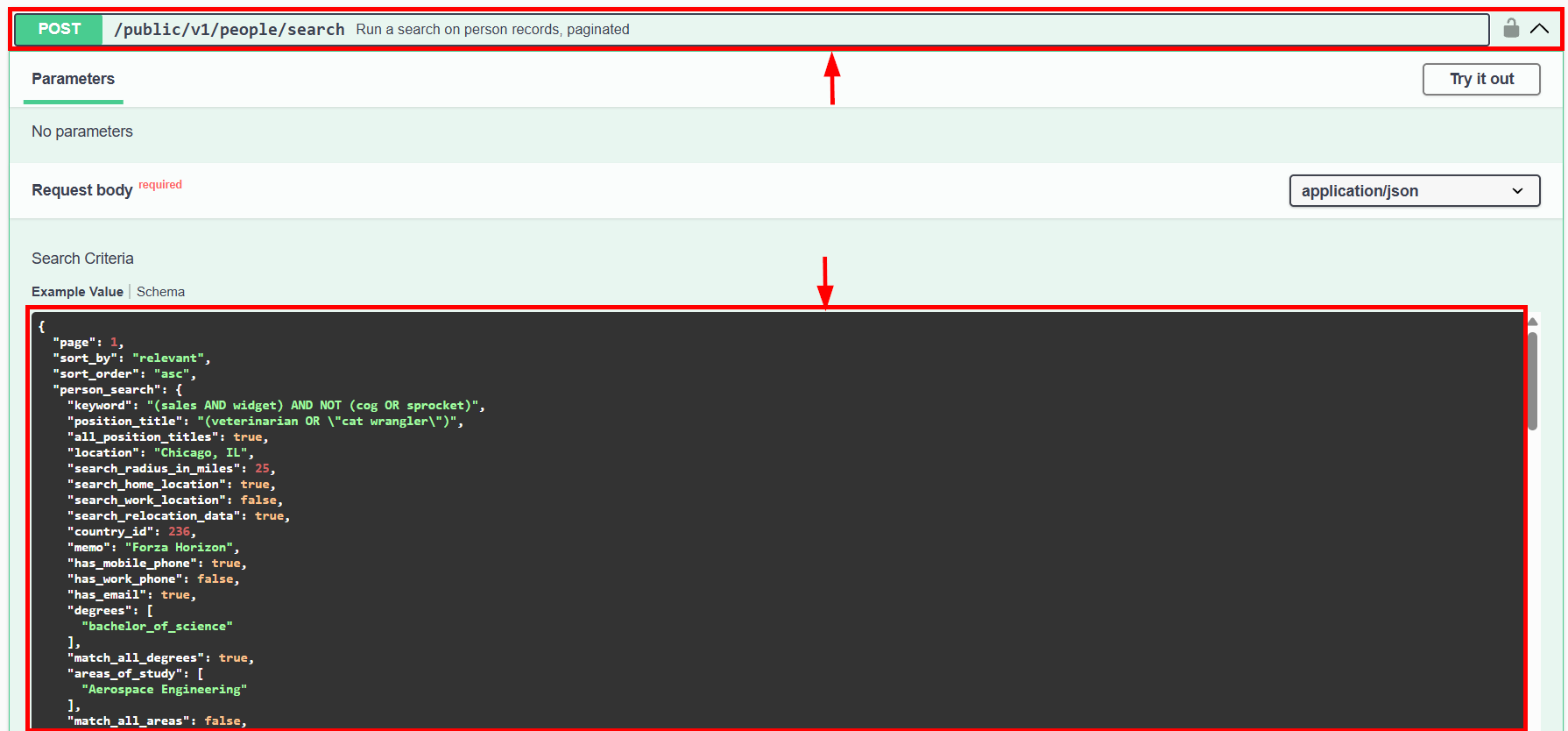
- In the example below, I wanted to search for a person, so I used the public/v1/people/search endpoint.
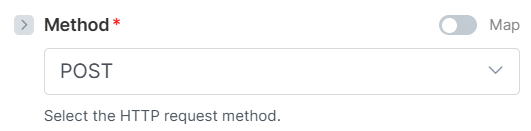
- Choose the correct Method in the corresponding drop-down
- This will be found in the swagger doc to the left of the endpoint you are using.

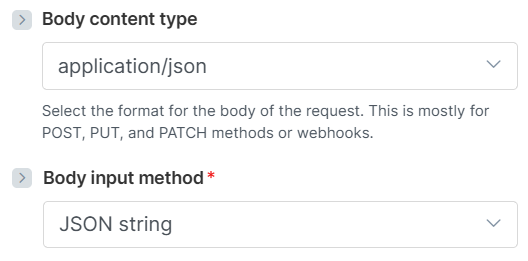
- Set the Body content type drop-down to "application/json"
- Set the Body input method dropdown to "JSON string"
- The Body content field is what you are passing to your chosen endpoint. The structure for the request will be found in the swagger doc by dropping down the menu for the endpoint you are using.
- Fill in the Body content field with the data you want to pass into TE Recruit's Open API
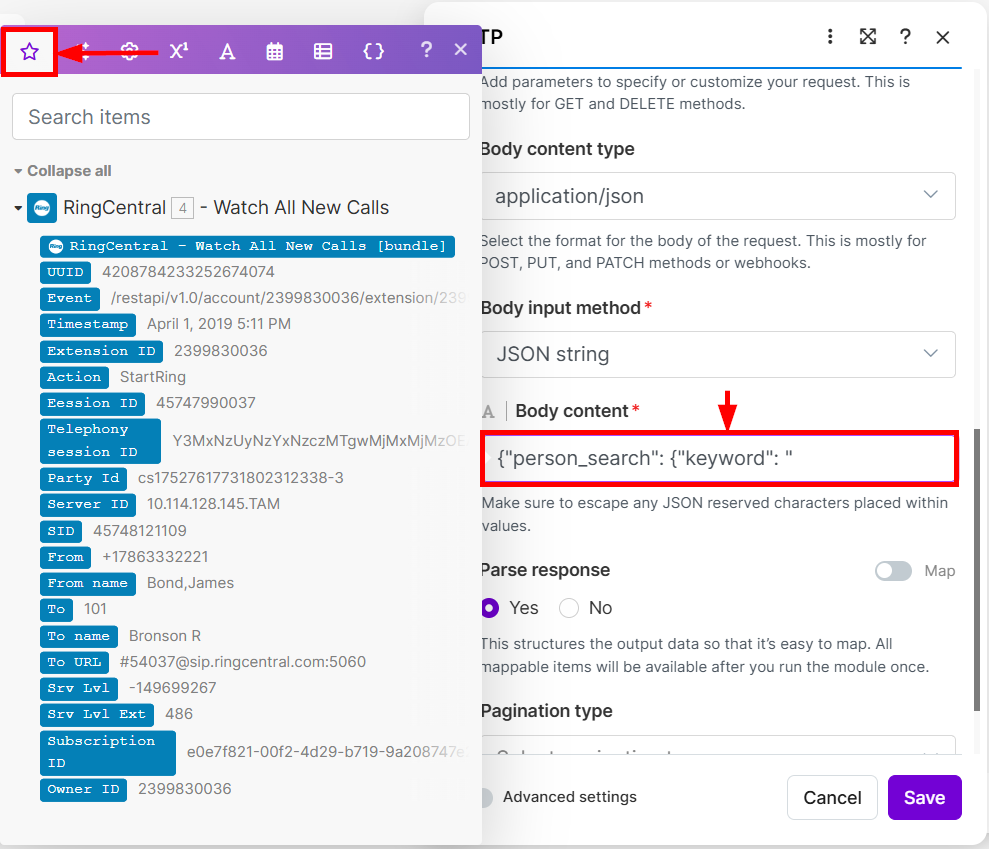
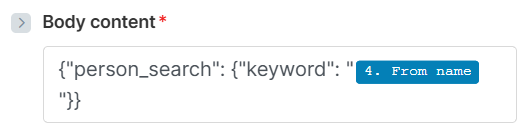
- In most cases, you will have a module set up before this one to obtain data from a different software. For example, RingCentral. That means any data you receive in your RingCentral module can be passed into subsequent modules.
- When you click into the Body content field, a modal will open from Make. The star tab will include data from any previous modules. The other tabs are used for things like math functions, arrays, date and time, etc. They are helpful for manipulating the data.
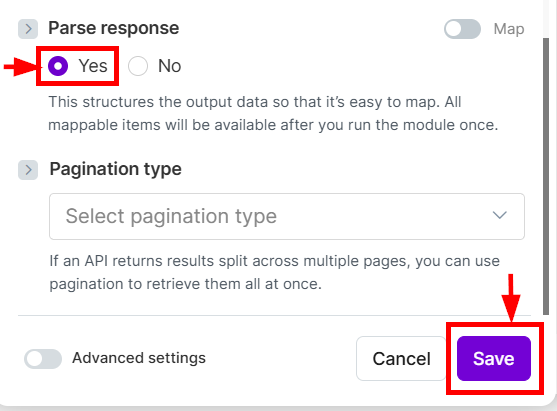
- Set Parse response to "Yes," and click the purple Save button at the bottom right